Image tools
Time Machine
An object, rebuilt as any year might have made it.
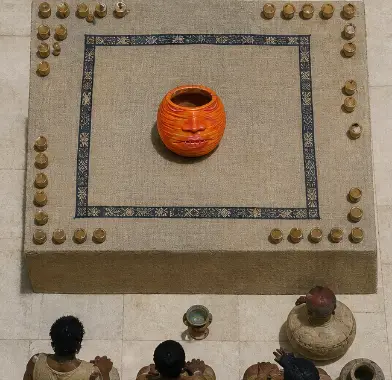
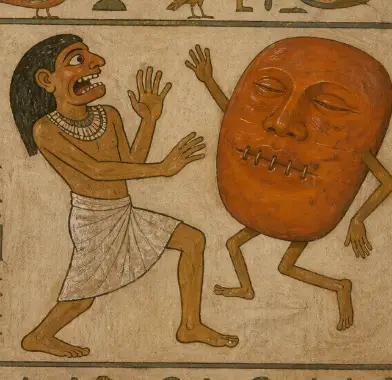
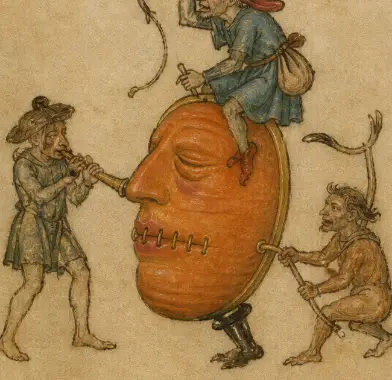
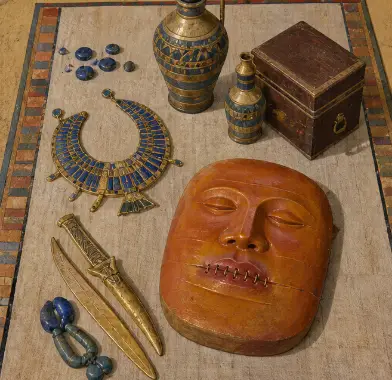
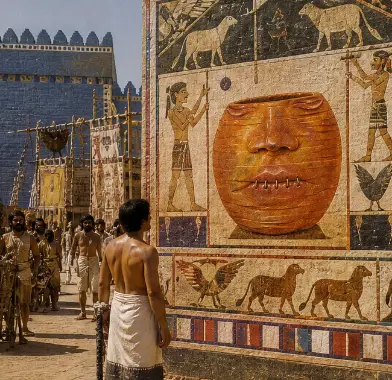
<!-- Generated by apps/docs/scripts/gen-tools.mjs. Do not edit here: the words live in apps/web/src/lib/tools/time-machine.tool.json (agent), the settings in the same file and packages/shared/src/tools/setting-hints.ts. --> <figure class="tool-io"> <div class="tool-io__in"> <img src="/docs/tools/time-machine/source.webp" alt="The picture that went in" loading="lazy" /> <span>What goes in</span> </div> <div class="tool-io__arrow" aria-hidden="true">→</div> <div class="tool-io__out"> <div class="tool-io__grid"> <img src="/docs/tools/time-machine/egypt-a.webp" alt="One result" loading="lazy" /> <img src="/docs/tools/time-machine/egypt-b.webp" alt="One result" loading="lazy" /> <img src="/docs/tools/time-machine/egypt-c.webp" alt="One result" loading="lazy" /> <img src="/docs/tools/time-machine/egypt-d.webp" alt="One result" loading="lazy" /> <img src="/docs/tools/time-machine/egypt-e.webp" alt="One result" loading="lazy" /> </div> <span>What comes out</span> </div> <figcaption>A real run: one picture in, 5 back.</figcaption> </figure> ## When to use it Imagining what an object would have looked like in other eras, as options and new ideas: several readings at once, each rebuilt the way that time could actually have made it. ## When to reach for something else It needs a real picture, and each reading is a different kind of picture, so one specific change of one picture to one named period (her as a 1920s photograph) is Image Gen's edit, not Time Machine. ## How to use it 1. Drop a picture onto the card's **Reference** slot. 2. Set **Year** and **Readings** on the card. 3. Press **Run**. Each result lands on the board as its own picture. <figure class="tool-card-shot"> <img src="/docs/tools/time-machine/card.png" alt="The Time Machine card with a picture dropped in" loading="lazy" /> <figcaption>The card on the board, with a picture dropped in.</figcaption> </figure> ## Settings These sit behind the settings button on the card. | Setting | What it does | Choices | | --- | --- | --- | | Quality | The overall finish level. Higher looks better but costs more and is slower. | Low, Medium, High | | Size | Output resolution. Large (2K) renders sharper cells at a higher credit cost. | Standard, Large, 4K |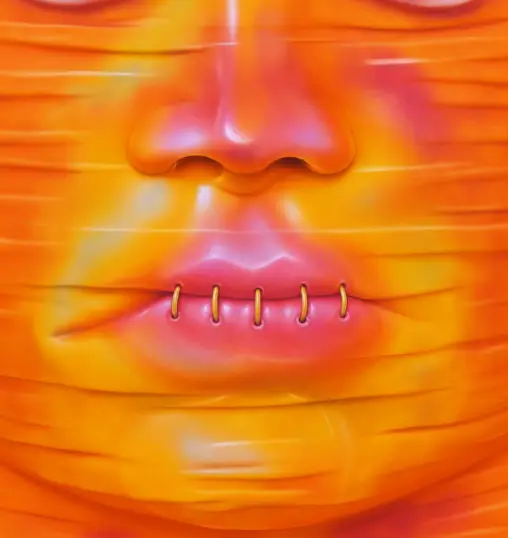 What goes in
When to use it
Section titled “When to use it”Imagining what an object would have looked like in other eras, as options and new ideas: several readings at once, each rebuilt the way that time could actually have made it.
When to reach for something else
Section titled “When to reach for something else”It needs a real picture, and each reading is a different kind of picture, so one specific change of one picture to one named period (her as a 1920s photograph) is Image Gen’s edit, not Time Machine.
How to use it
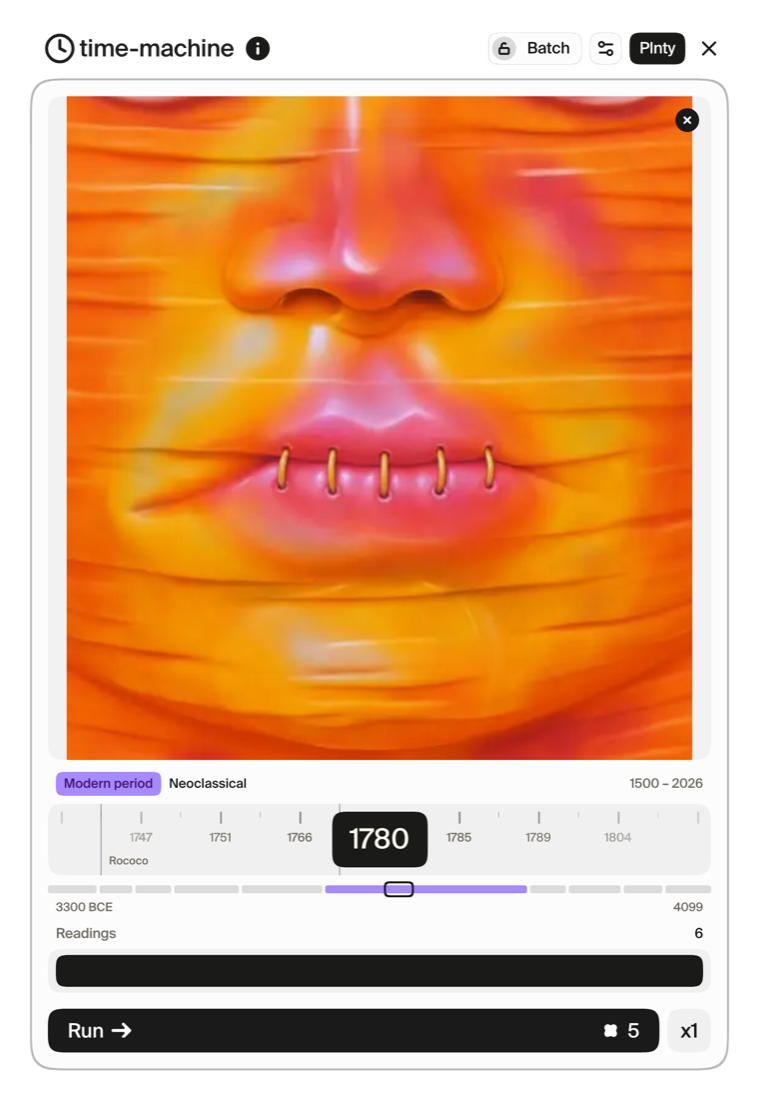
Section titled “How to use it”- Drop a picture onto the card’s Reference slot.
- Set Year and Readings on the card.
- Press Run. Each result lands on the board as its own picture.
Settings
Section titled “Settings”These sit behind the settings button on the card.
| Setting | What it does | Choices |
|---|---|---|
| Quality | The overall finish level. Higher looks better but costs more and is slower. | Low, Medium, High |
| Size | Output resolution. Large (2K) renders sharper cells at a higher credit cost. | Standard, Large, 4K |