Using a tool
How a tool works
Every card on the canvas has the same four parts, which is why learning one tool teaches you most of them.
A tool card is a small panel on the canvas: something goes in at the top, you give it direction, and you press Run at the bottom. The parts sit in the same places on every card, so the second tool you open is already familiar. | Part | Where it is | What it does | | - | - | - | | The drop area | The top of the card | Takes the image, video, mesh or text the tool works on | | The prompt | Under the drop area, on tools that have one | Your direction, in words | | The gear | Bottom right | Opens the settings panel to the right of the card | | Run | Bottom, with a number beside it | Fires the run at the price shown | 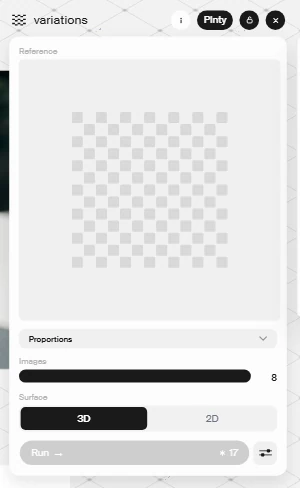 ## Getting a card onto the canvas Drag a tool out of the left sidebar and drop it where you want it, or right-click empty canvas, type its name and press <kbd>Enter</kbd>. The card lands where you pointed. Dropping it beside the work it acts on keeps a busy board readable. Most cards also come to you. Right-click an image and Plnty offers the actions that apply to it, so **Rapid edit**, **Remove Background** and **More like this** all start from the image you selected rather than from an empty card. ## What goes into it Drag something onto the drop area, or drop it on the card from anywhere on the canvas. Some tools take one input and some take several, and the card shows how many slots it has. Where there is more than one, you can address them in the prompt with `@`: ```text title="Prompt with references" put @image-2's logo on @image-1, keep the lighting from @image-1 ``` :::tip[Text cards are draggable too] Drag a canvas text card onto a prompt box and its text drops in. A brief written once, as a card on the board, gets reused across tools without retyping. ::: ## Press Run The card collapses into a small pill that sits where the card was, rotating through a few words while it works, and your result lands on the canvas when it arrives. The card closing is the default because most runs are one-shot. If you want it to stay open for another go, [lock it](/docs/using-plnty/using-a-tool/locking-a-card/). :::note[Closing the tab does not lose a run] The work is tracked server-side, so reloading or navigating away is safe. The result lands on the board when it is ready, whether or not you were watching. ::: ## What comes back The result is a normal canvas object. Feed it into the next tool, drop it in a frame, comment on it, export it. What separates it from a file you uploaded is its record: the tool, the model, the prompt and the settings that produced it stay attached to it. Right-click it for **Rerun**, which reopens the card that made it with the same settings still loaded. A near miss becomes another attempt without rebuilding anything.A tool card is a small panel on the canvas: something goes in at the top, you give it direction, and you press Run at the bottom. The parts sit in the same places on every card, so the second tool you open is already familiar.
| Part | Where it is | What it does |
|---|---|---|
| The drop area | The top of the card | Takes the image, video, mesh or text the tool works on |
| The prompt | Under the drop area, on tools that have one | Your direction, in words |
| The gear | Bottom right | Opens the settings panel to the right of the card |
| Run | Bottom, with a number beside it | Fires the run at the price shown |

Getting a card onto the canvas
Section titled “Getting a card onto the canvas”Drag a tool out of the left sidebar and drop it where you want it, or right-click empty canvas, type its name and press Enter. The card lands where you pointed. Dropping it beside the work it acts on keeps a busy board readable.
Most cards also come to you. Right-click an image and Plnty offers the actions that apply to it, so Rapid edit, Remove Background and More like this all start from the image you selected rather than from an empty card.
What goes into it
Section titled “What goes into it”Drag something onto the drop area, or drop it on the card from anywhere on the canvas.
Some tools take one input and some take several, and the card shows how many slots it
has. Where there is more than one, you can address them in the prompt with @:
put @image-2's logo on @image-1, keep the lighting from @image-1Press Run
Section titled “Press Run”The card collapses into a small pill that sits where the card was, rotating through a few words while it works, and your result lands on the canvas when it arrives. The card closing is the default because most runs are one-shot. If you want it to stay open for another go, lock it.
What comes back
Section titled “What comes back”The result is a normal canvas object. Feed it into the next tool, drop it in a frame, comment on it, export it. What separates it from a file you uploaded is its record: the tool, the model, the prompt and the settings that produced it stay attached to it.
Right-click it for Rerun, which reopens the card that made it with the same settings still loaded. A near miss becomes another attempt without rebuilding anything.